.png)
How do I use Lead Retrieval in my events?
If your registration includes 'Lead Retrieval' (Lead Scanner) then you will be able to scan the QR codes on attendee name badges and retrieve lead information for them.
Lead scanning is quick and easy, and can be accomplished using your own phone or tablet via your web browser.
To access this ability, simply follow the link in your registration email to access your registration. Once logged in, you will see an area for 'Lead Retrieval' within your registration. You have two abilities here:
Scanning 'Leads'
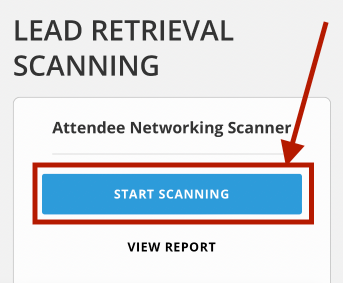
- To start capturing leads, simply tap/click on the blue 'Start Scanning' button on your registration 'show' page:
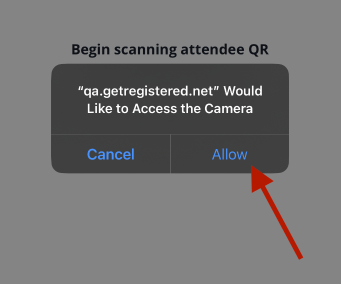
- Grant access to the camera on your device:
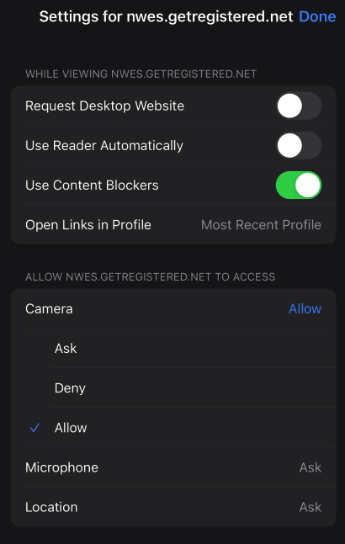
- Ensure that your site settings have your camera access set to 'ALLOW':
- Start scanning name badges to capture lead information:
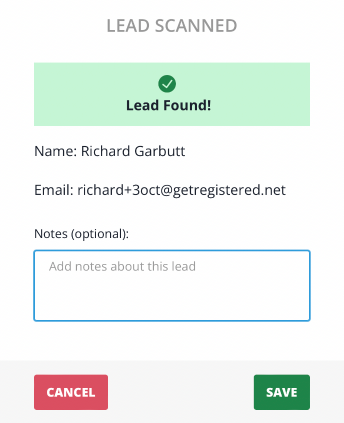
You can also capture a 'note' to record some extra information about this lead if required.
Viewing your Lead Retrieval Report
- From your registration page, click on the 'View Report' button:

- In here, you can see all of the leads you have scanned as well as their general information. You can also update/add a note for each of them, by hitting the 'Add Note' button:

- To download a lead report of all your lead scans, click on the 'Download' button and select your preferred file type (CSV/XLSX):

Hints and Troubleshooting
Changing Camera
If you wish to change the camera on your device that is doing the scanning, simply tap/click on the 'change video device' button. For example, you can toggle between your rear camera and your front (selfie) camera. For best results, use the 'Back Triple Camera' if that is available.

Adding 'Lead Retrievals' to your Home Screen
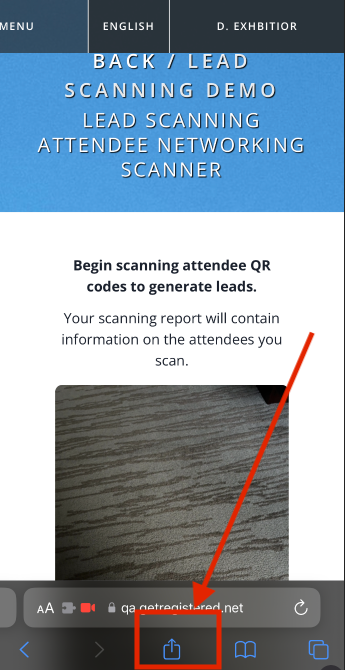
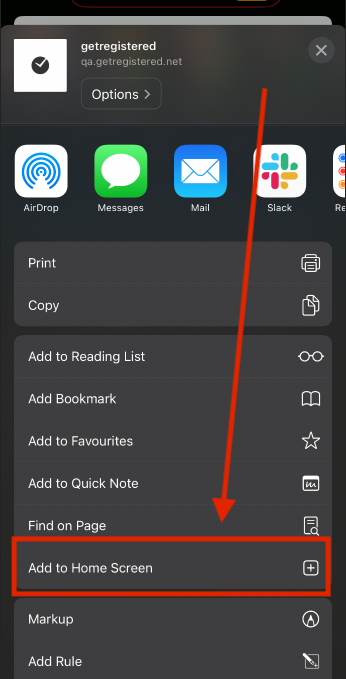
On iPhones & iPads, select the 'Share' button, and choose the 'Add to Home Screen' option:
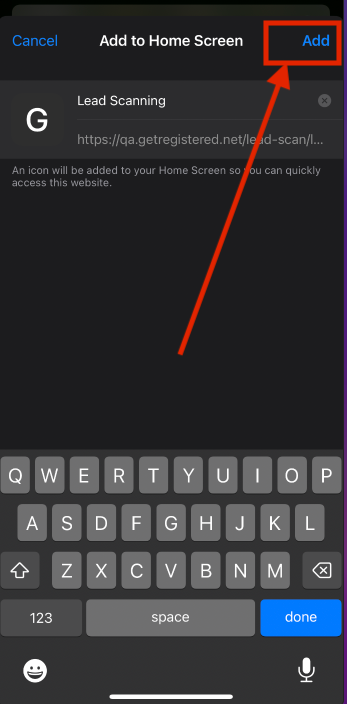
You will now see that you have the 'Lead Scanning' feature added to your device home screen, as if it was a stand-alone application.